

Troubleshooting DICOM Viewer
Slow Rendering and Crashing
To avoid slow rendering and crashing, we recommend the following:
- Memory (RAM): 16 GB (recommended for smoother operation of most datasets)
- Graphics : WebGL compatible graphics card (while most datasets work with integrated graphics card, a dedicated graphics card can improve performance especially in large medical image datasets)
- Note: A dedicated graphics card is strongly recommended for using MPR (Multi-planar) mode and any 3D rendering features)
If you are experiencing slow rendering or crashes on cases, please follow the steps below and share this information with your project manager.
Information to share with project manager
- The time of the issue occurred, as precisely as possible. This will be useful for our team identify issues in the backend log files
- Your physical location (i.e., city and country)
- Your public IP address
- What type of computer are you using?
- What type of video card of you using?
- If running Windows:
- Press Windows + R to open the Run dialog box.
- Type
dxdiagand press Enter - In the DirectX Diagnostic Tool, go to the Display tab.
- Here, you can see details about your GPU, including the manufacturer, model, and driver version.
If there are more than one display, there could be separate tabs. - chrome://gpu/ will show which of the video cards is being used by Chrome and its attributes
- Here, you can see details about your GPU, including the manufacturer, model, and driver version.
- If running Windows:
- What are all the video cards available to you?
- If running Windows:
- Press Win + X and select Device Manager
- Expand the Display adapters category
- All installed video cards will be listed there
- If running Windows:
- Case IDs for cases you are unable to load
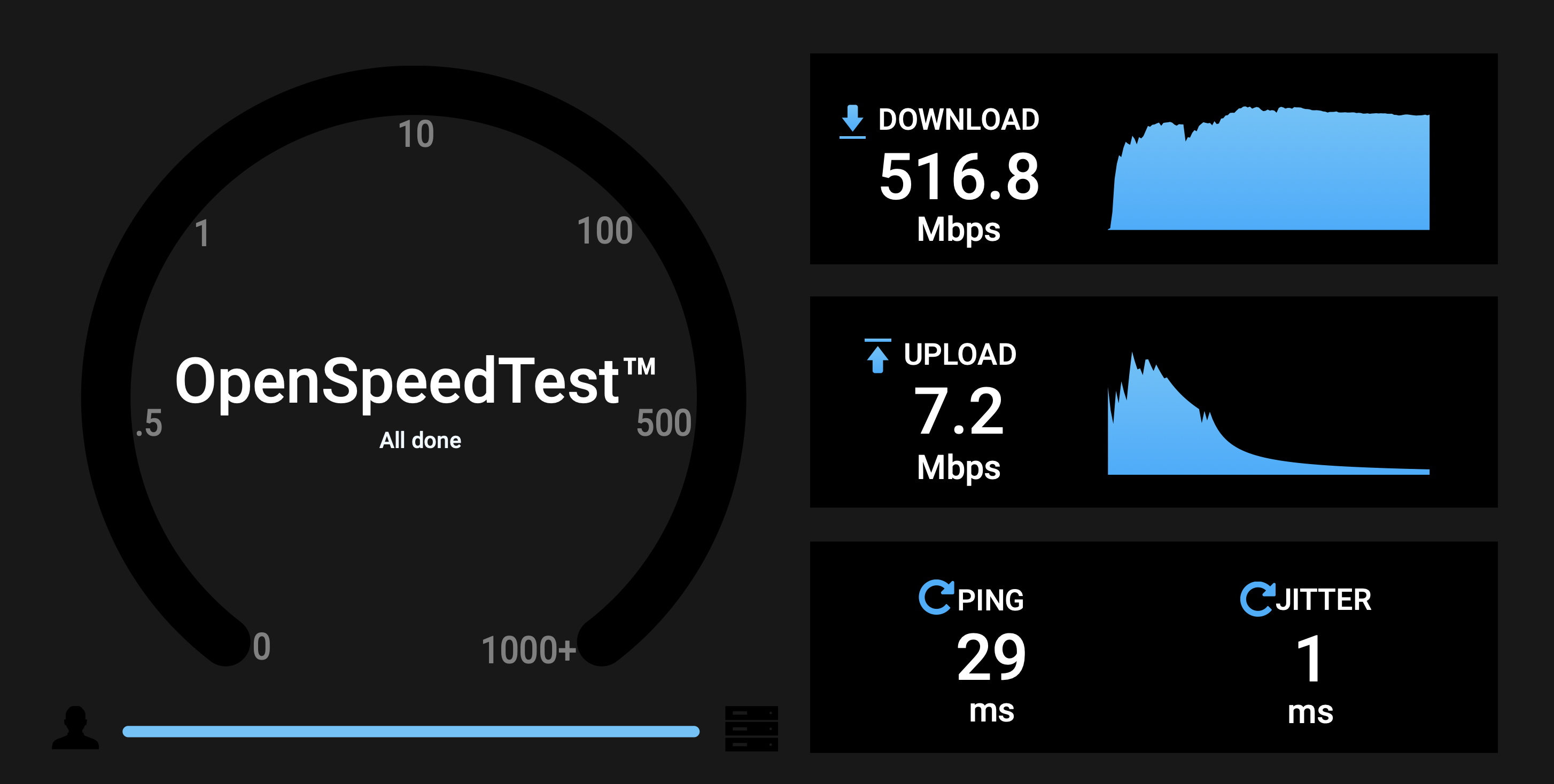
- Results from centaur speed test
- Please navigate to the Centaur Speed Test, and click start
- Provide a screen shot, of the data reported by the page:
- Download Speed (Mbps)
- Upload Speed (Mbps)
- Ping (ms)
- Jitter (ms)
Please share your computer type, video card being used, all video cards available, and the case IDs you are unable to load with your project manager.
Example:
- Time of Issue: Tuesday, 10:30 AM EST
- Physical Location: New York City, U.S.
- Public IP: 63.116.61.253
- Laptop: ASUS Expertbook
- GPU: Intel(R) UHD graphics Family
- Other GPUs: NVIDIA Quadro P 2000
- Case IDs: 8831275, 8731476
- Results from speed test:
Changing your video card
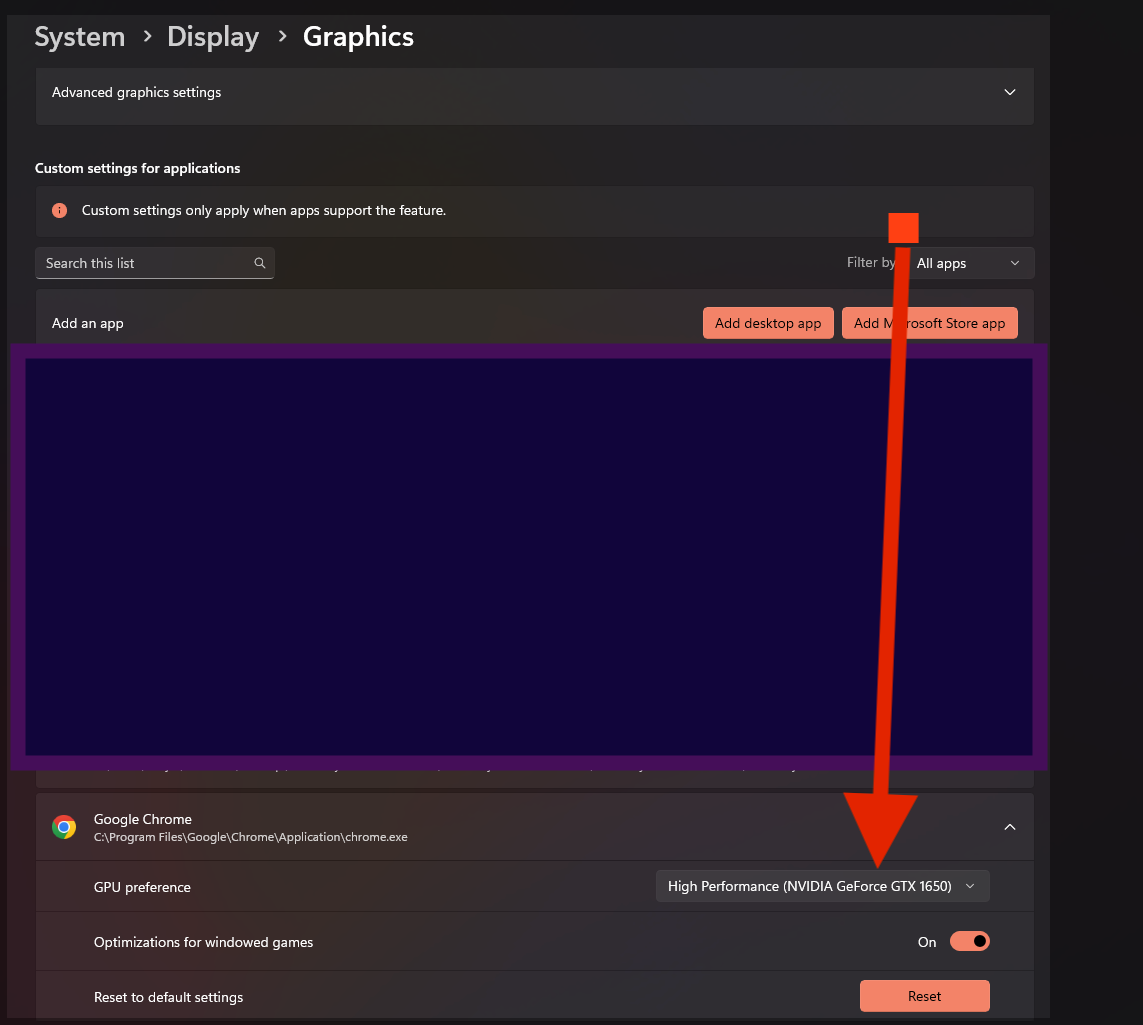
Depending on your video cards being used and those available, we may ask you to switch to a preferred video card available in your system.
To force your browser to use a different card, complete the following steps
- Go to System > Display > Graphics
- Add Google Chrome as an app
- Click on the Add Dektop app button
- Navigate to the location where Google Chrome is installed on your computer. The default location is usually C:\Program Files\Google\Chrome\Application
- Select the chrome.exe file and click Add
- Set to high performance
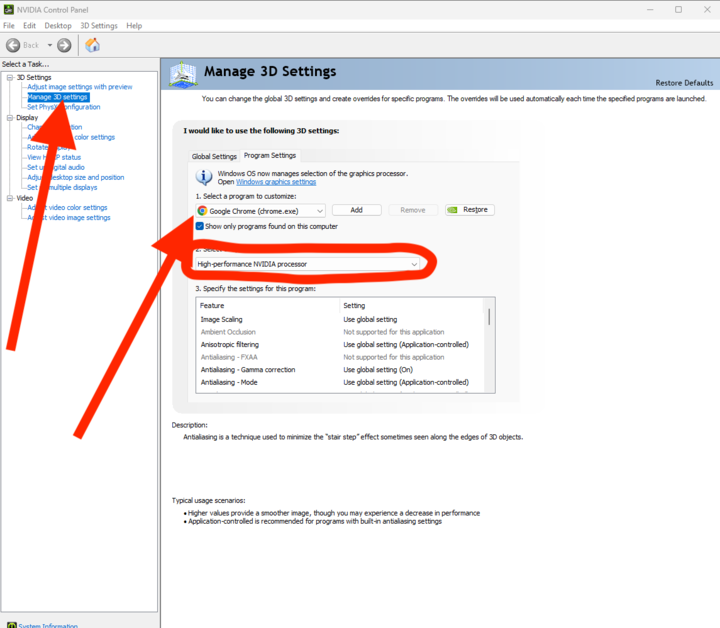
- If using NVidia, in control panel, choose High performance card for Google Chrome.
- When on Windows with integrated video card in Chrome: If rendering of images is slow, or the screen goes white or black, then,
- Add "chrome://flags/#use-angle" to the address bar
- Select 'OpenGL' , as this resolves slow rendering frequently
If you continue to have errors, please copy and paste any errors from your console or take a screenshot and share with your project manager.
Saving and Auto-Recover
The Centaur DICOM Viewer automatically saves your labeling progress as you work, so you never lose completed annotations due to crashes, browser closures, or other unexpected interruptions.
How auto-save works
The viewer automatically saves your labeling progress every 30 seconds while you are working on a case. This happens in the background; you do not need to take any action to trigger a save. Each time your progress is saved, a "Progress saved" confirmation appears briefly in the lower-right corner of the screen.
Auto-save captures all annotation work you have completed on the current case prior to submission. This includes polygon annotations, segmentations, measurements, and any other labeling work in progress.
Restoring saved work
If you experience a crash, browser closure, or other error while labeling, you can recover your progress by following these steps:
- Reopen the Centaur DICOM Viewer in your browser.
- Navigate back to the case you were working on.
- The viewer detects that saved progress exists and prompts you to restore it.
- Select the restore option to load your previously saved annotations.
Your work is restored to the state it was in at the last auto-save point (within 30 seconds of when the interruption occurred).
Video demo
For a walkthrough of the auto-save and auto-recover feature, watch the demo video.
Updated 5 months ago