

Create Gold Standards
Gold standards are the training set for our labelers. Just as your model needs a good distribution of exemplary cases in order to learn to identify patterns, our human labelers need samples to help them learn your labeling task.
Gold standards are also used to evaluate labelers. We learn to trust the labelers who score well on gold standards, and their opinions are used to create labels. Opinions from labelers who don't perform well on gold standards are discarded. Your labels are created only from the labelers we've learned to trust.
Here's a guide to best practices for gold standards, and how to set them up.
The basics
We recommend that all projects start with gold standards, including at least 25 examples per class. Having many examples helps train labelers and reduces the chance of bias on unlabeled cases. The more gold standards you can provide, the better!
Gold standards should be representative of your dataset, and indistinguishable from unlabeled cases. If your gold standards look different than the unlabeled cases, labelers will learn the differences, resulting in lower quality labels.
Common issues with gold standards include:
- Unique identifying text, numbers, or symbols that can be memorized
- Differential quality between gold standards and unlabeled cases
- Variation in tool/measurement device used to capture the gold standard cases versus unlabeled cases
For a classification task, each possible answer choice should have at least 25 examples. For segmentation and range selection tasks, include at least 50 examples with findings per class.
Don't have gold standards? We can help! Read on for info about Creating gold standards.
To either import existing gold standards or create them, go to the desired task and then select the Add labels tab. You'll see a few separate options.
Import existing Gold Standards
If you already have gold standards, you can import them via API or with a CSV, as explained below.
Add Using API
Reference our API documentation for instructions on setting gold standards via API.
For pixel segmentation, please reach out to your project manager for uploading Gold Standard cases.
Upload with CSV
Follow the instructions to download the CSV template. Add answers to each row where you'd like to assign an answer. Use the Case Id and Customer Origin columns to match the cases.
- Do not change the values in any of the other fields (i.e., "Case Id", "Customer Origin", and "Labeling State").
- The "Notes" column is also available as an optional place for metadata you'd like to store.
- Any rows with a blank Answer column will not change. If you've already set a gold standard for the case, you can update that row. The gold standard will only be changed, not removed if it exists.
Classification
For classification cases with multiple answer classes, provide an array of answers: ["answer1","answer2"].
Segmentation
For segmentation tasks, answers should follow WKT format. In the case of multi-class segmentation (also in WKT format), each answer class should exist on its own row. For specifications and examples for each segmentation type, see WKT format.
Input the correct class into the answer class field and the corresponding coordinates into the answer field. To indicate ‘No findings’ as the correct label for a particular class, provide the answer field as an empty array [].
For pixel segmentation, please reach out to your project manager for uploading Gold Standard cases.
Range Selection
NER:
For named entity recognition tasks, the CSV should contain the character positions of the first and last characters that should be highlighted for each range. All ranges should be 0-indexed, include the start index, and exclude the end index. Ranges must be provided in ascending order. Here are some examples:
{
  "data": {
    "h-0": "Example",
    "h-1": "Sample text",
    "h-2": "Details",
    "h-3": "Answers column",
    "0-0": "Text snippet",
    "0-1": "Label this drug",
    "0-2": "Import range should be:  \nthis drug [6, 15]",
    "0-3": "[[6,15]]",
    "1-0": "Text snippet with newlines",
    "1-1": "Label this drug  \nLabel that drug",
    "1-2": "Import range should be:  \n\t•this drug [6, 15]  \n\t•that drug [23, 32]",
    "1-3": "[[6,15],[23,32]]"
  }
}
Gold Standard Upload Example
| case_id | Labeling State | origin | notes | answer_class | answer |
|---|---|---|---|---|---|
| 18437226 | In Progress | ID-1631 | finding | [[6,15]] |
Definitions
- Case ID – Unique identifier for cases in our system. Do not edit.
- Labeling State – The state of the case. Read more here. Do not edit.
- Origin – Original file identifier or filepath. Do not edit.
- Notes – Any notes internal to your team or tracked by Centaur relevant to the case.
- Answer Class – The class assigned to the answer. Do not edit.
- Answer – The answer for the case.
In the case of multi-class NER, each answer class should exist on its own row. Input the correct class into the answer class field and the correct ranges in the answer field.
To indicate ‘No findings’ as the correct label for a particular class, the answer field should be provided as an empty array [].
Time Range Selection
For time range selection tasks, the CSV should contain the first and last deci-seconds that should be included in each range.
All ranges should be 0-indexed, include the start index, and exclude the end index.
Ranges must be provided in ascending order.
Here is an example:
Example
| Name | Details | Sample | Answers column |
|---|---|---|---|
| Video snippet | Import range should be: [0, 7] | 00:00.0s - 00:00.7s | [[0,7]] |
Gold Standard Upload Example
| case_id | Labeling State | origin | notes | answer_class | answer |
|---|---|---|---|---|---|
| 18437221 | In Progress | ID-1627 | murmur | [[0,7]] |
Definitions
- Case ID – Unique identifier for cases in our system. Do not edit.
- Labeling State – The state of the case. Read more here. Do not edit.
- Origin – Original file identifier or filepath. Do not edit.
- Notes – Any notes internal to your team or tracked by Centaur relevant to the case.
- Answer Class – The class assigned to the answer. Do not edit.
- Answer – The answer for the case.
In the case of multi-class time range selection, each answer class should exist on its own row. Input the correct class into the answer class field and the correct ranges in the answer field.
To indicate ‘No findings’ as the correct label for a particular class, the answer field should be provided as an empty array [].
Create new Gold Standards
There are various options for creating gold standards with your team.
Here's a quick overview of the options, which we explain in further detail below:
| Review individual cases | Team web labeling | Mobile app labeling | |
|---|---|---|---|
| # of Reviewers | 1 | 1+ | 1+ |
| Auto-segmentation | ❌ | ✅ | ❌ |
| Project Manager assistance required | ❌ | ✅ | ✅ |
| Label cases across multiple tasks at once? | ✅ | ❌ | 🛠 (in development) |
| Performance measurement & feedback | ❌ | ❌ | ✅ |
Add one by one
By selecting this option, you'll be navigated to the list of cases in your task. Select a case and use the Correct Label dropdown to set a correct answer.
Navigate to subsequent cases using the Next → button, and set an answer for each one. Continue setting up answers until you've reached the recommended threshold for each class. You can check your progress by checking the Correct Labels distribution on the top of the Cases tab.
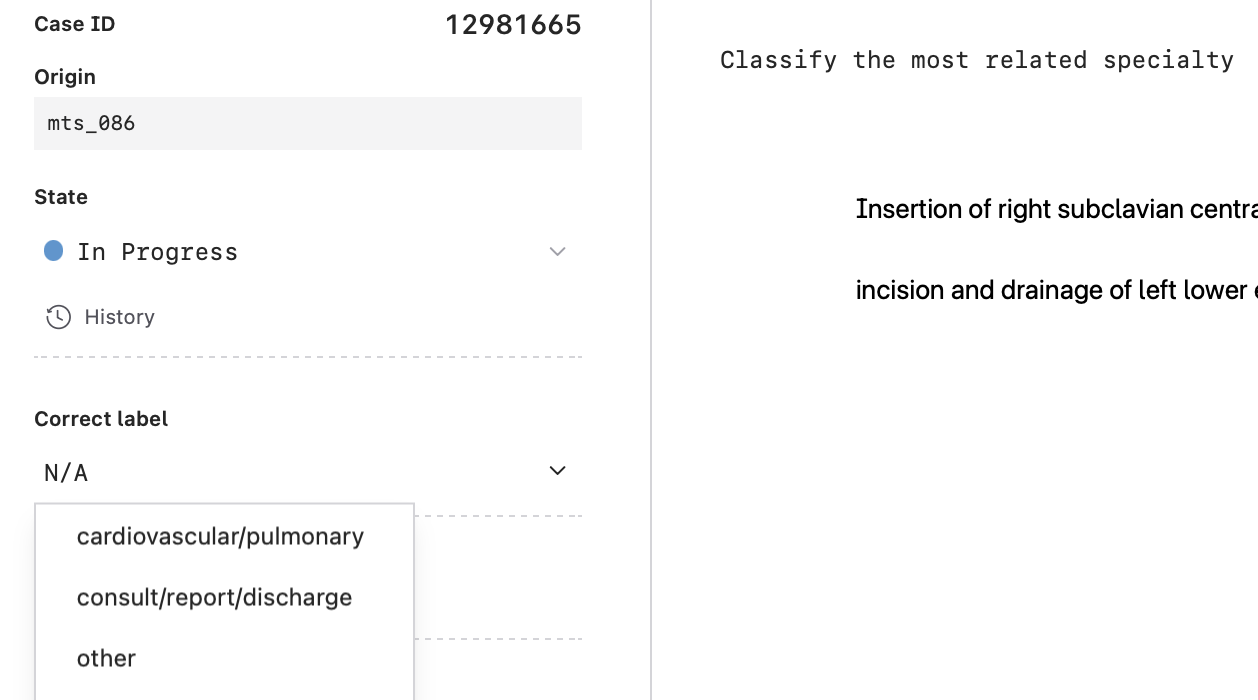
Setting gold standards one-by-one. Evaluate your progress from Correct labels in the Cases tab.
For multi-frame segmentation or classification tasks, within an individual case you can navigate from a context frame to a case where it becomes the target frame by clicking the arrow next to the context frame of interest.
Click here for additional detail regarding context vs. target frames.
Web labeling
Perfect for teams with multiple expert labelers available, who don't want to rely on a single labeler to create gold standards, and/or want to use auto-segmentation.
From the Add labels tab, select Web Labeling. You can begin labeling by selecting the box containing Web Labeling. Invite labelers from your team by selecting Copy link to share and sharing the link. Note: labelers must have a Centaur Labs account to access the link.
Everyone invited to label can provide a label on each "In Progress" case in the task.
Labels added via web labeling will then be shown on the case view (which you can navigate to by clicking the Cases tab in your task).
As you can see below, each of the labels added on a case will be shown under "Top Reads".
Once all the work is complete, view all labels and assign Gold Standards from the aggregated opinions.
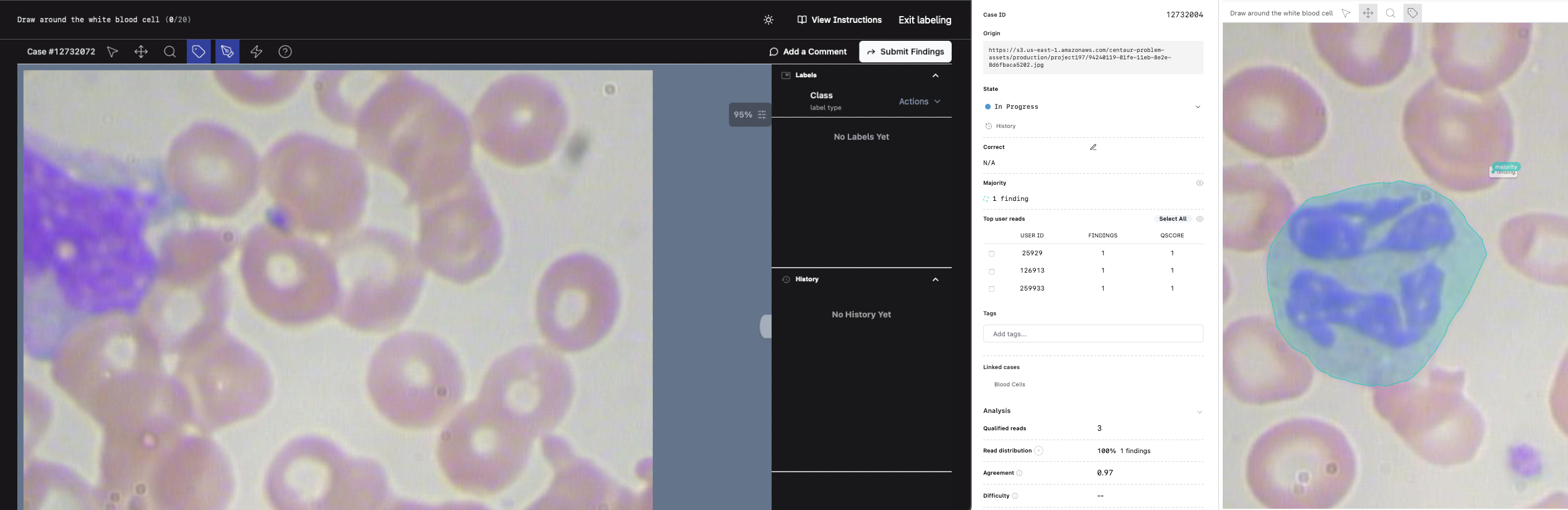
Auto-segmentation can also be used to assist in creating your gold standards.
Select the lightning icon at the top of the screen, and then box around the object you want segmented.
The object will then be auto-segmented, and you can adjust the individual points as needed.
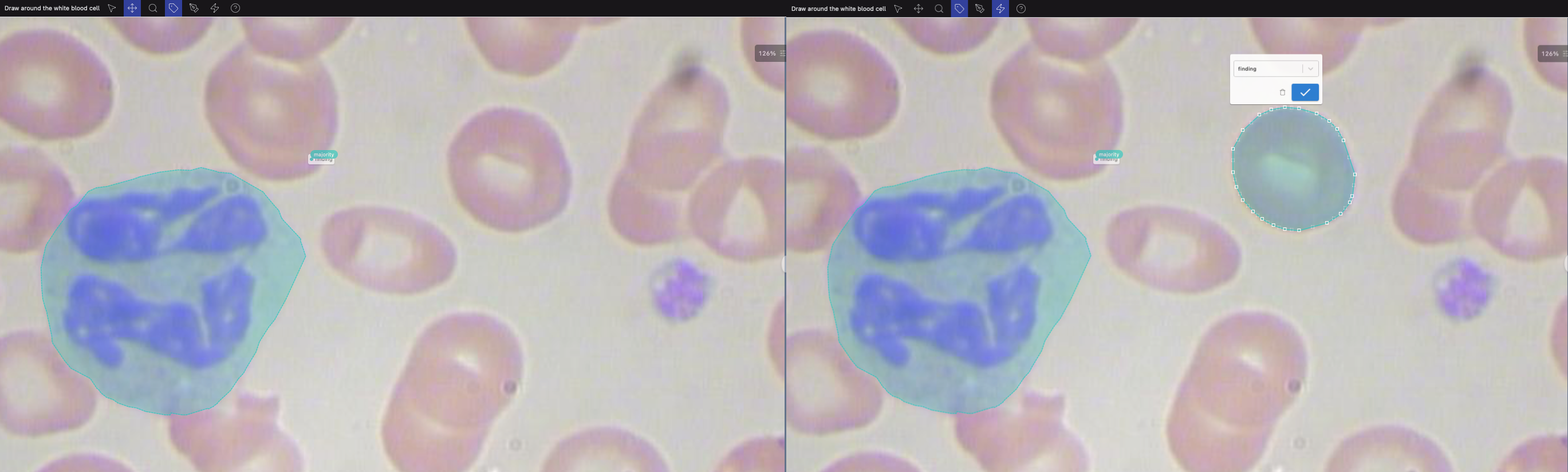
Assistance creating gold standards
If your team doesn't have gold standards on hand or isn't able to create trusted Gold Standards, we've got options to get your project off the ground.
Creating gold standards using consultants
Centaur can connect you with professionals with the specialty and level of expertise you need to create a Gold Standard set.
Talk to your project manager about adding consulting to your project.
Creating gold standards through consensus
For simple tasks, Centaur network consensus can create Gold Standards.
The consensus method is effective for obvious classification and segmentation tasks, like highlighting areas of bleed or classifying image quality. Labelers will be evaluated based on their similarity to others' responses.
If you're interested in jump-starting your project without adding Gold Standards, the consensus method can be a quick and effective way to start.
Talk to your project manager to see if your project could be a candidate for consensus-created Gold Standards.
Adapting gold standards from a similar dataset
Centaur has Gold Standard datasets available for common tasks and modalities, like chest X-rays, skin lesions, and EKG.
Talk to your project manager to see if your dataset could be supplemented with an open-source Gold Standard set.
Updated about 1 year ago